Install IPTV Smarters on FireStick: Real Experience Guide
So my buddy Jake texts me last month: “Dude, how do you install IPTV Smarters Pro on FireStick? YouTube tutorials are confusing AF.”
I laughed because six months ago, that was me—sitting in front of my TV at 11 PM with three different YouTube tabs open, my FireStick remote, and growing frustration. Let me tell you how this actually went down, including the stupid mistakes I made so you don’t have to.
Section 1: The "Unknown Sources" Disaster (And Why It Matters)
My First Attempt (Complete Failure)
Picture this: I downloaded the Downloader app, got the IPTV Smarters APK URL ready, pressed install and… nothing. Just an error message saying “Installation blocked by security settings.”
I spent literally 20 minutes troubleshooting before realizing I’d skipped THE most important first step. Turns out FireStick has this security setting that blocks “unknown sources” by default—basically anything not from Amazon’s app store. IPTV Smarters Pro isn’t in their store, so… yeah.
What You Actually Need to Do FIRST
Here’s the thing everyone glosses over in those quick tutorials:
Go to Settings (that gear icon at the top)
→ My Fire TV (or just “Device” on older FireSticks)
→ Developer Options
→ Turn ON “Apps from Unknown Sources”
Amazon will show this scary warning like you’re about to install malware. Ignore it. IPTV Smarters is legitimate—Amazon just doesn’t sell it themselves.
The Surprise That Made It Click
When I finally enabled this and went back to install, it worked instantly. I felt like an idiot for wasting 20 minutes but also weirdly proud I figured it out. The error message never actually TELLS you about unknown sources—you just have to know.
Pro tip I learned: Do this step BEFORE you even open Downloader. Save yourself my 20 minutes of confusion.
Give this tweak a try: Enable unknown sources right now if you’re following along. Trust me, future-you will thank present-you for not skipping ahead.
Section 2: The Downloader App Mystery (And My Typo Nightmare)
Getting the Right Downloader
Next mini-fail: I searched “downloader” in Amazon’s app store and found like 6 different apps with similar names. Downloaded the wrong one first—some sketchy file manager that absolutely wasn’t what I needed.
The RIGHT Downloader: Look for “Downloader” by AFTVnews. It’s orange and white icon, free, has millions of downloads. That’s your guy.
Once I got the actual Downloader installed and opened it, I hit my next ridiculous problem.
The URL Typo That Cost Me 15 Minutes
Downloader asks for a URL to fetch the IPTV Smarters APK. I typed it in using the FireStick remote—you know, that tiny on-screen keyboard where you use the D-pad to select each letter like some ancient typewriter.
Typed the whole URL. Hit GO. Nothing downloaded. Tried again. Same thing.
Turns out I’d mistyped ONE character in the middle of the URL. One single letter wrong, and the whole thing fails silently with no helpful error message. Spent 15 minutes checking my internet, restarting the app, before I slowly typed the URL again and noticed my typo.
The Game-Changing Shortcut
Here’s what I wish someone had told me: Use the Amazon Fire TV app on your phone.
Download it, connect to your FireStick, and you can type URLs using your actual phone keyboard. SO much faster than that remote keyboard nonsense.
Alternatively, have the IPTV Smarters URL open in an email or message where you can copy-paste it if using a computer to send to your FireStick somehow (this gets complicated, honestly just use the phone app).
What Actually Happened When It Worked
Once I got the correct URL typed:
- Downloader fetched the IPTV Smarters APK (took like 30 seconds)
- Automatic popup asked if I wanted to install
- Clicked “Install”
- Waited maybe 45 seconds
- “App Installed” message appeared
That’s when Downloader asked if I wanted to delete the APK file to save space. Clicked “Delete”—you don’t need it anymore once installed.
Mini-surprise: IPTV Smarters Pro shows up in your apps list but not always on your home screen. Go to Settings → Applications → Manage Installed Applications to find it and move it to home.
Give this tweak a try: Before you start typing that URL, download the Fire TV phone app. Seriously, it’ll save you so much frustration.
Section 3: The Login Part (Where I Almost Gave Up)
The Credentials Confusion
So now I had IPTV Smarters Pro installed. Opened it. Saw the login screen with fields for Username, Password, and Server URL.
And I stared at it thinking… “Wait, where do I get these?”
This is where I almost rage-quit. Nowhere in the app does it explain that you need an IPTV subscription FIRST. The app is just a player—it doesn’t provide content. It’s like downloading Netflix but forgetting you need a Netflix subscription to actually watch anything.
What I Did Next (After Facepalming)
Realized I needed to subscribe to an actual IPTV service. Did some research, found IPTV Smarter TV, grabbed their monthly plan to test it out.
Within minutes of subscribing, I got an email with:
- Username
- Password
- Server URL
- Instructions on where to enter them
THAT’S what goes in those login fields in IPTV Smarters Pro.
The Actual Login Process (Easier Than Expected)
Opened IPTV Smarters Pro again:
- Selected “Login with Xtream Codes API” (most common method)
- Entered username from email
- Entered password from email
- Entered server URL from email
- Clicked “Add User”
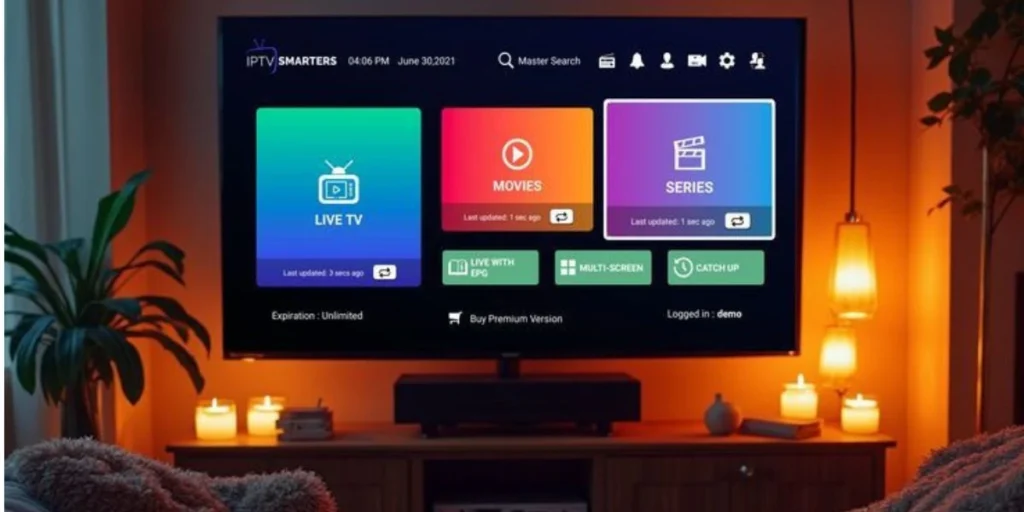
App connected in about 5 seconds. Suddenly my screen filled with thousands of channels organized by category: Sports, Movies, Canadian Channels, International, etc.
The Surprise That Made It Worth It
The quality was… really good? Like genuinely HD, smooth streaming, channels loaded in 1-2 seconds. I’d built up this expectation that IPTV would be janky or sketchy-feeling, but it just worked like any premium streaming app.
Tested TSN during a hockey game that night—no buffering, crisp picture, way better than I expected.
The Thing Nobody Told Me
Keep your login credentials saved somewhere. I almost lost mine in email hell. Take a screenshot or write them down. You’ll need them again if you ever reinstall the app or add it to another device.
Also: different IPTV services sometimes use different login methods (Xtream Codes, M3U URL, etc.). The credentials email should specify which method to use.
Give this tweak a try: Before you even attempt installation, get your IPTV subscription sorted. Check out current pricing options and have your credentials ready. The actual installation is quick—most of your time is just prep work.
What I'd Tell Someone Starting Fresh Today
If Jake texted me right now asking how to do this, here’s my short version:
- Get IPTV subscription first (don’t be like me trying to use an empty app)
- Enable Unknown Sources in FireStick settings BEFORE anything else
- Download Downloader by AFTVnews from Amazon app store
- Use Fire TV phone app to type the URL (your sanity will thank you)
- Save your credentials somewhere you’ll actually find them again
- Test during a live game you care about (best way to verify quality)
Total time once you know what you’re doing? Maybe 15 minutes including download time.
Total time if you’re figuring it out blind like I did? Closer to 90 minutes of trial, error, and mild frustration.
The Real Bottom Line
Installing IPTV Smarters Pro on FireStick isn’t actually hard—it’s just that the tutorials skip over the dumb little stumbling blocks that waste your time. The “unknown sources” thing, the correct Downloader app, the typo-prone URL entry, the realization you need actual subscription credentials…
Each one seems obvious AFTER you figure it out. But when you’re mid-installation at 11 PM just wanting to watch TV, they’re annoying as hell.
Now? I’ve installed it on three different FireSticks for friends. Takes me like 8 minutes. The difference is just knowing the gotchas ahead of time.
Questions or stuck on a step I didn’t cover? Hit me up on WhatsApp and I’ll help troubleshoot. Sometimes you just need someone who remembers being confused about the same thing.