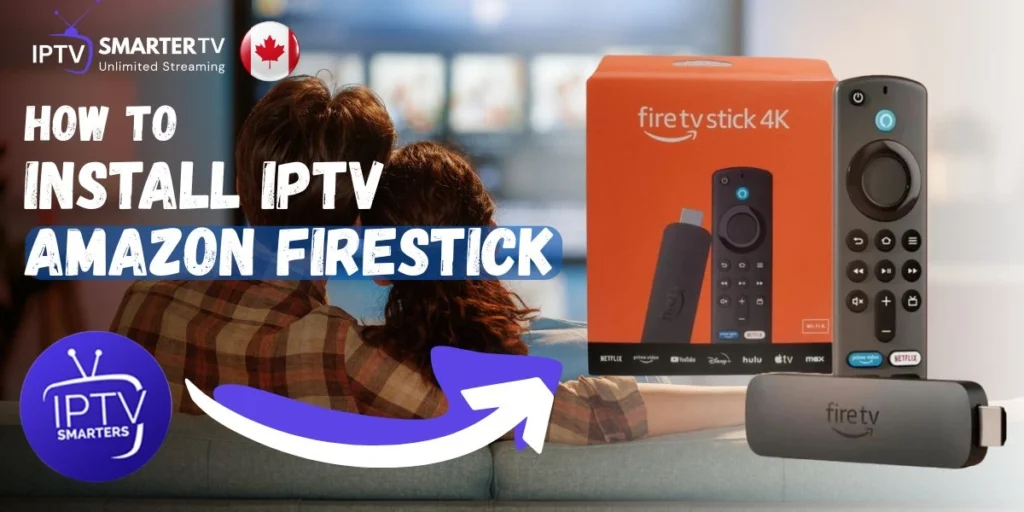
How to Install IPTV On Amazon Firestick (The Easy Way)
Here’s what surprised me when I first tried to install IPTV on Firestick—I expected some complicated tech nightmare with codes and command lines, but it took literally 10 minutes and I did it while half-watching a game. My buddy had been putting it off for weeks thinking it was too hard, then watched me do it and felt kind of silly for waiting so long.
If you can download an app on your phone, you can absolutely install IPTV Smarters on your Firestick. Let me walk you through it like I’m sitting right there with you.
What You'll Need Before Starting
- Amazon Firestick (any model works)
- Active internet connection
- IPTV subscription (grab one from IPTV Smarter TV plans)
- Your login credentials (email when you subscribe)
- About 10 minutes
That’s it. No special equipment, no tech degree required.
Step 1: Enable Apps from Unknown Sources
The Story: First time I did this, the “unknown sources” label freaked me out a bit. Sounds sketchy, right? But it just means apps not from Amazon’s official store. IPTV Smarters is totally legitimate—Amazon just doesn’t carry it in their store, so we need to allow installation from elsewhere.
Here’s what to do:
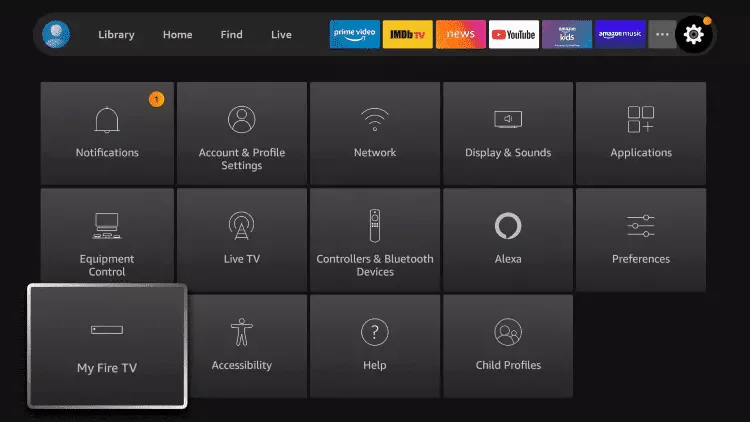
- From your Firestick home screen, go to Settings (the gear icon at top)
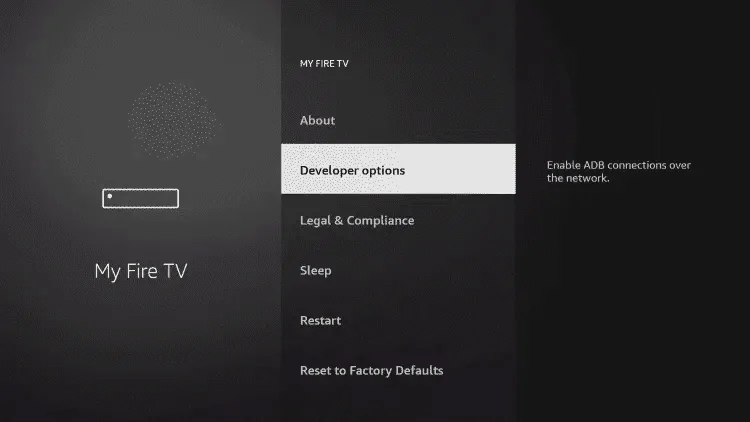
- Select My Fire TV (or just “Device” on older models)
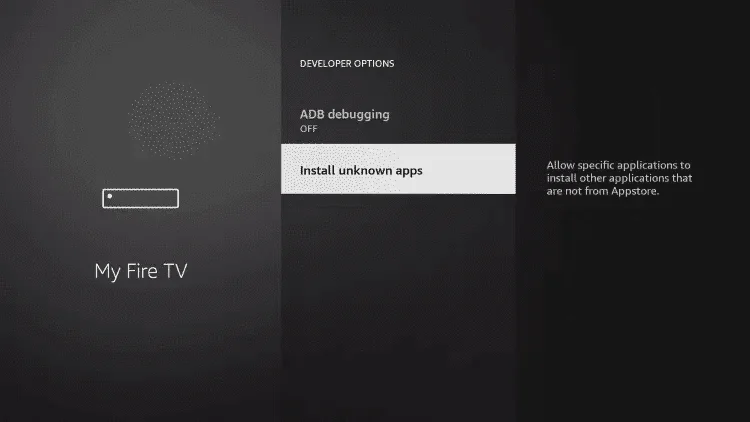
- Click Developer Options
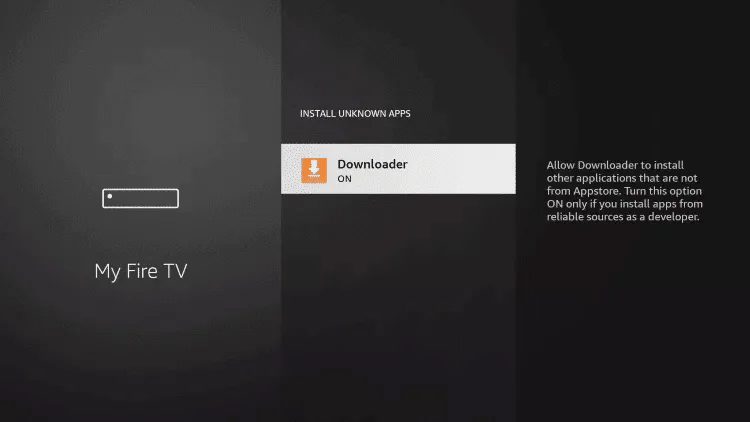
- Turn on Apps from Unknown Sources
- Amazon will show a warning—just click Turn On (it’s safe, promise)
Lesson learned: Don’t skip this step. I once helped someone who got stuck for 30 minutes because they forgot to enable this first. The installation just won’t work otherwise.
Step 2: Install the Downloader App
The Story: This is your helper app that grabs IPTV Smarters for you. Think of it like a delivery truck bringing the app to your Firestick.
Here’s how:
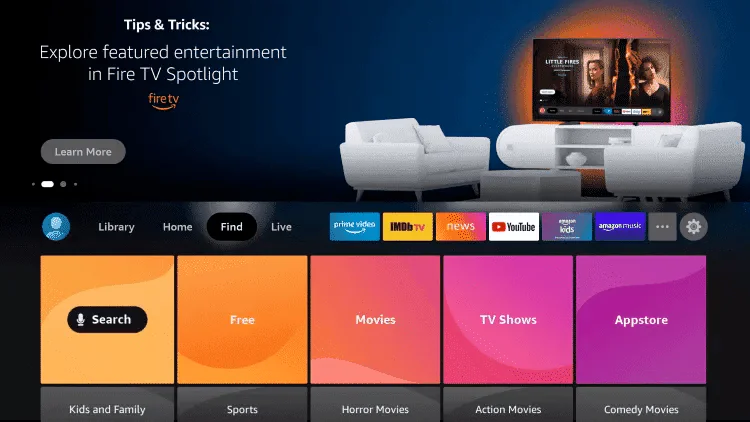
- Go back to Firestick home screen
- Click the Search icon (magnifying glass)
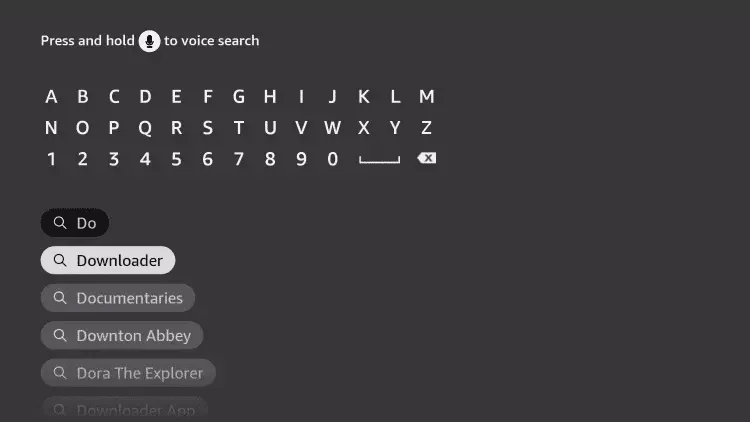
- Type “Downloader” using the on-screen keyboard
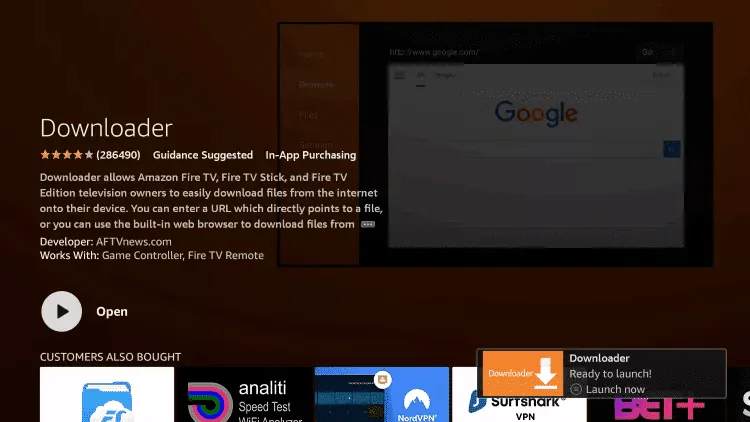
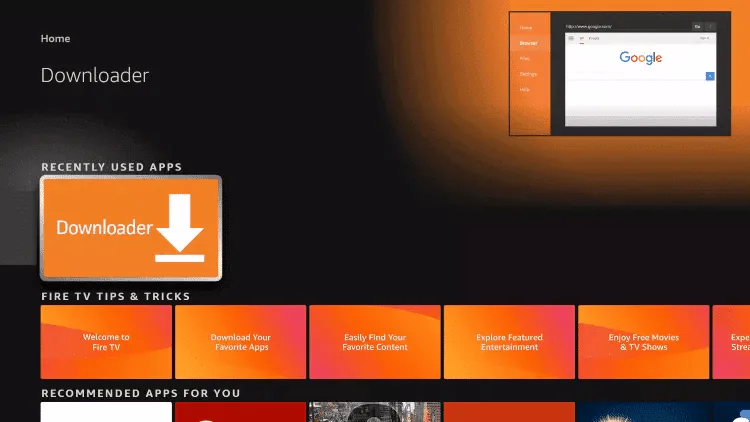
- Select the Downloader app by AFTVnews (it’s free)
- Click Download then Open
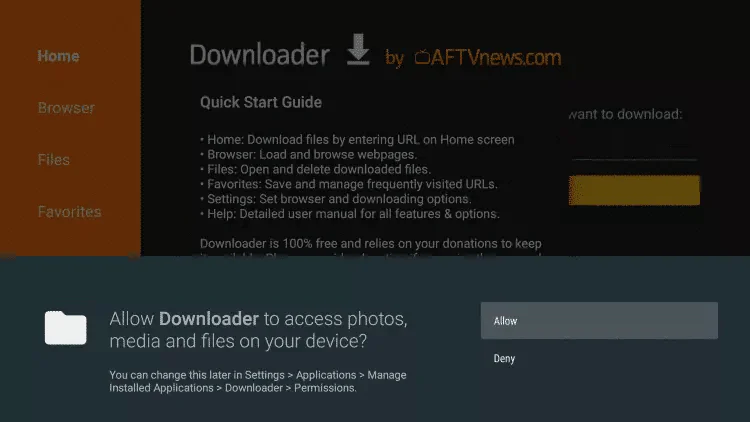
The Downloader app will ask for permissions—just click Allow. It needs these to fetch files for you.
Step 3: Download and Install IPTV Smarters Pro
- Open the Downloader app
- In the URL field, enter: https://www.iptvsmarters.com/download (or use the direct APK link provided when you subscribe)
- Click Go
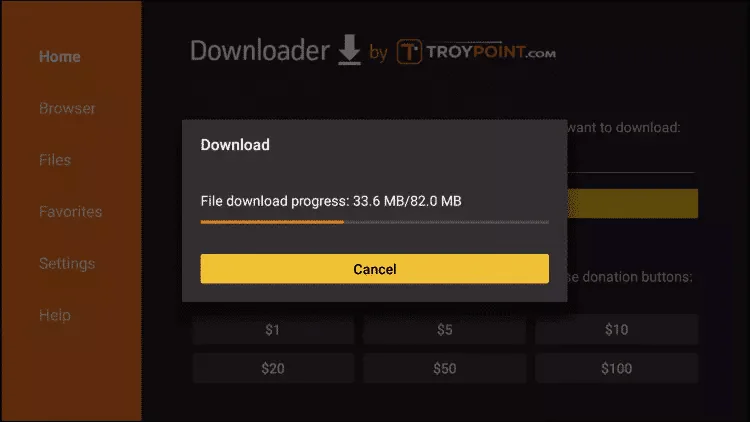
- The app will download (takes maybe 30 seconds)
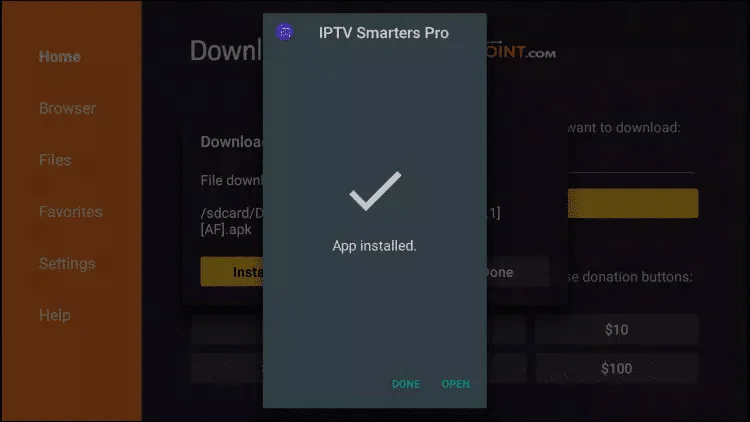
- When download completes, click Install
- Wait for installation to finish (another 20-30 seconds)
- Click Done
Pro tip: After installation, Downloader asks if you want to delete the installation file to save space. Click Delete—you don’t need it anymore and it frees up storage.
Step 4: Set Up IPTV Smarters With Your Account
The Story: This is where people sometimes panic because they forgot where they saved their login info. Before you start installation, have your credentials ready—email and password you got when you subscribed. I literally wrote mine on a sticky note the first time because I knew I’d forget.
Setup steps:
- Go back to Firestick home screen
- Find IPTV Smarters Pro in your apps (or go to Settings → Applications → Manage Installed Applications)
- Open the app
- Select Login with Xtream Codes API (most common)
- Enter your details:
- Username (from your subscription email)
- Password (from your subscription email)
- Server URL (provided in your welcome email)
- Click Add User
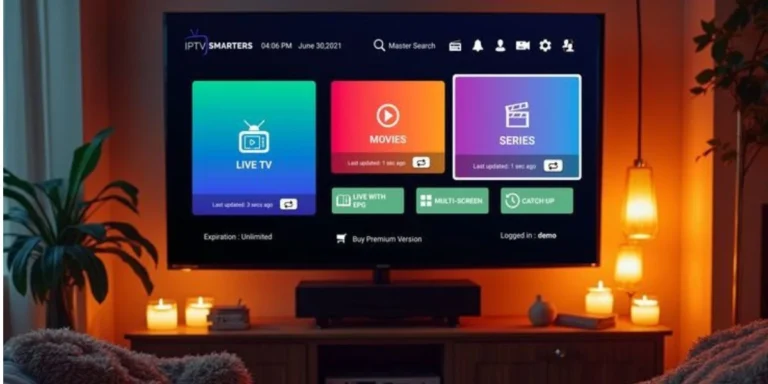
The app will connect to servers—takes about 5-10 seconds. Then boom, you’ll see all your channels loaded and ready to stream.
Quick Troubleshooting: When Things Don't Work
App won’t install?
- Check your internet connection
- Make sure “Unknown Sources” is actually enabled
- Restart your Firestick and try again
Can’t find IPTV Smarters after installing?
- Go to Settings → Applications → Manage Installed Applications
- It’ll be in the list—you can move it to your home screen from there
Login not working?
- Triple-check your credentials (no extra spaces)
- Copy-paste from email if possible
- Contact support on WhatsApp if still stuck
Channels loading slowly?
- Check your internet speed (need at least 10 Mbps for HD)
- Restart the app
- Check the FAQ for more solutions
Why This Matters
Learning to install IPTV on Firestick means you’re now saving $80-100 monthly compared to cable while getting more content. That’s over $1,000 yearly that stays in your pocket. Plus you’re not locked into contracts or dealing with cable company nonsense.
Check out IPTV Smarter TV pricing to see how affordable premium streaming actually is—$59 annually for the best plan. That’s less than what cable charges for one month.
Still Need Help?
Got questions or stuck on a step? Message us on WhatsApp and we’ll walk you through it. Real people, real help—not some automated response system.
If you’re more of a visual learner, See this screenshot for the full view. Sometimes seeing it done helps more than reading instructions.